


Secure Boot Certificates Expire in June 2026 - Cut Through the Noise, Here Is What to Do

Three Microsoft certificates that anchor the Secure Boot chain of trust on every Windows device manufactured since 2012 begin expiring in late June 2026. Based on Dell's published certificate timeline, the first expiration (Microsoft Corporation KEK CA 2011) lands on June 24, 2026, followed by the UEFI CA 2011 on June 27, with the final certificate (Windows Production PCA 2011) expiring on October 19, 2026. Your clinical workstations, servers, and laptops will not stop booting that day. But they will permanently lose the ability to receive future boot-level security protections until they are updated. For health care environments where those endpoints store or process ePHI, that is a risk that belongs in your risk analysis and on your maintenance calendar right now.
Microsoft has published an impressive volume of guidance on this topic, spanning over a dozen KB articles, multiple playbooks, GPO templates, Intune settings, PowerShell automation suites, and even a dedicated troubleshooting guide. The problem is that the sheer scale of that documentation has become its own barrier to action, especially for the health care IT teams that need this information most. If you manage 40 workstations at a Critical Access Hospital and your to-do list is already three pages long, you do not need a 30-page playbook with a "Want more options?" link at the bottom. You need to know what this means, what to do about it, and what happens if you miss the window.
Note: For a step-by-step remediation plan, see our other posting: https://healthtechauthority.com/deploying-secure-boot-2023-certificates-active-directory-and-configuration-manager-step-step
What Is Actually Changing
Secure Boot is a UEFI firmware feature that verifies digital signatures on boot-level software before allowing it to execute. It is the first line of defense against bootkit malware, which operates below the operating system and is effectively invisible to antivirus software. The BlackLotus UEFI bootkit demonstrated this threat in practice, capable of disabling BitLocker, Defender, and Hypervisor-Protected Code Integrity before Windows even started.
The trust chain that makes Secure Boot work depends on certificates stored in your device firmware. Microsoft issued the current set of certificates in 2011, and they have been present on every Windows device with Secure Boot since Windows 8. Those certificates are now expiring. There are three of them:
| Expiring Certificate | Expires | Replacement | Purpose |
|---|---|---|---|
| Microsoft Corporation KEK CA 2011 | June 24, 2026 | Microsoft Corporation KEK 2K CA 2023 | Authorizes updates to the Secure Boot signature databases (DB and DBX) |
| Microsoft Corporation UEFI CA 2011 | June 27, 2026 | Microsoft UEFI CA 2023 + Microsoft Option ROM UEFI CA 2023 | Validates third-party boot loaders and Option ROMs (network adapters, graphics cards, etc.) |
| Microsoft Windows Production PCA 2011 | October 19, 2026 | Windows UEFI CA 2023 | Signs the Windows boot loader |
Exact expiration dates per Dell's published certificate timeline. Microsoft officially references "June 2026" and "October 2026."
The Microsoft Corporation KEK CA 2011 expires June 24, 2026. It authorizes updates to the Secure Boot signature databases. The Microsoft Corporation UEFI CA 2011 expires June 27, 2026. It validates third-party boot loaders and Option ROMs for hardware like network adapters and graphics cards. The Microsoft Windows Production PCA 2011 expires October 19, 2026. It signs the Windows boot loader itself.
Microsoft has issued 2023 replacements for all three and has been including them in Windows cumulative updates since May 2025. Any machine that is current on patches already has the replacement certificates sitting on disk. But having them on disk is not the same as having them in firmware. For IT-managed environments, the certificates are not written to the UEFI firmware automatically in most cases. They require you to flip the switch.
Here is what happens if you do nothing: your devices keep booting normally, and standard Windows updates keep installing. However, the device can no longer receive new Boot Manager updates, Secure Boot database revocations, or mitigations for newly discovered boot-chain vulnerabilities. Over time, the device enters a progressively degraded security state. Scenarios that depend on Secure Boot trust, including BitLocker hardening and third-party boot components, may also be affected.
What You Should Do
If your environment has Active Directory, and nearly every health care organization with more than a handful of endpoints does, Group Policy is the fastest and least complicated path to getting this done. It does not require Intune licensing, diagnostic data sharing with Microsoft, or any additional tooling.
Step 1: Deploy OEM firmware updates. Before touching the Secure Boot certificates, check with your hardware manufacturers for BIOS/firmware updates that include the 2023 certificates. Here is why this matters: UEFI firmware maintains two sets of Secure Boot certificate variables. The active set is what the firmware actually uses at boot time, and that is what the GPO method updates. The default set is stored in the firmware ROM by the OEM and is what gets restored if someone ever resets UEFI to factory defaults. OEM firmware updates refresh those defaults to include the 2023 certificates. Without the firmware update, a UEFI factory reset will reload the old 2011 defaults and can cause a boot failure if the 2023-signed boot manager is already on disk. Dell, HP, Lenovo, and Microsoft Surface all have published Secure Boot support pages with device-specific guidance.
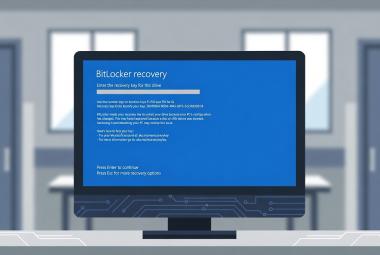
Step 2: Verify BitLocker key escrow. Changes to Secure Boot firmware variables can trigger BitLocker recovery. Before deploying anything, confirm that recovery keys for every BitLocker-encrypted device are stored in Active Directory, Configuration Manager (SCCM/MECM), Intune, or whatever management platform you use. If you cannot locate recovery keys for all devices, fix that first. Consider suspending BitLocker for two reboot cycles on target devices before initiating the update:
Suspend-BitLocker -MountPoint "C:" -RebootCount 2
Step 3: Download the updated ADMX templates. The Secure Boot Group Policy settings were first introduced in the V2.0 release of the Windows 11 25H2 Administrative Templates (October 2025). The current version is V3.0 (February 2026). If you downloaded the original V1.0 bundle from September 2025, it does not include the Secure Boot policies. Download Administrative Templates (.admx) for Windows 11 2025 Update (25H2) - V3.0 from Microsoft, run the MSI, and copy SecureBoot.admx and en-US\SecureBoot.adml into your Central Store (\\yourdomain\SYSVOL\yourdomain\Policies\PolicyDefinitions\). The templates are OS-agnostic and work across all supported Windows versions.
Step 4: Create and configure the GPO. Navigate to Computer Configuration > Administrative Templates > Windows Components > Secure Boot and enable "Enable Secure Boot Certificate Deployment." That single setting initiates the entire multi-step certificate update process on targeted devices. To be clear about what this does: the GPO triggers a Windows scheduled task that writes the 2023 certificates directly into the device's UEFI firmware variables. This is not a software overlay or a registry-only change. It is a real firmware-level update to the Secure Boot trust chain. The certificates are already on disk from previous cumulative updates, so no additional patching is needed after the GPO is applied. The scheduled task finds the payload, writes it to firmware, and the device is protected. Under the hood, this setting corresponds to the AvailableUpdatesPolicy registry value being set to 0x5944, which is useful to know if you are building ConfigMgr compliance baselines or detection scripts. Leave the other two GPO settings ("Automatic Certificate Deployment via Updates" and "Certificate Deployment via Controlled Feature Rollout") at their defaults unless you have a specific operational reason to change them.
Step 5: Link and deploy in waves. Link the GPO to a test OU first with a representative sample of hardware (Microsoft recommends at least 4 devices per unique manufacturer/model/firmware combination). Monitor for 48 hours, verify success, then expand to additional OUs.
Step 6: Monitor. The quickest way to check a device:
(Get-ItemProperty 'HKLM:\SYSTEM\CurrentControlSet\Control\SecureBoot\Servicing' -Name 'UEFICA2023Status' -ErrorAction SilentlyContinue).UEFICA2023Status
"Updated" means the device is done. You can also check Event ID 1808 in the System event log for confirmation, or Event ID 1801 for error details.
The update process runs via a scheduled task every 12 hours and requires at least one reboot to complete the boot manager replacement. It does not force reboots. Microsoft estimates approximately 48 hours and one or more restarts per device, but the process relies on reboots occurring through normal usage or your existing maintenance windows.
For ConfigMgr or script-based environments: You can skip the GPO and set the registry value directly, then push it through a task sequence, script deployment, or compliance baseline:
reg add HKLM\SYSTEM\CurrentControlSet\Control\SecureBoot /v AvailableUpdates /t REG_DWORD /d 0x5944 /f
For Intune-managed devices: Use the Settings Catalog under Secure Boot and enable "Enable Secureboot Certificate Updates." Be aware that Intune had licensing recognition issues on Windows Pro editions through early 2026; those have been resolved for most configurations.
For very small clinics without AD or Intune: The manual registry method above works on individual devices. You can also wait for the Windows Security app indicators rolling out in April and May 2026, which will show certificate status under Device Security > Secure Boot on Windows Pro and Home editions and prompt you if action is needed.
Want to baseline your fleet first? Microsoft provides a Sample Secure Boot Inventory Data Collection script (KB 5072718) that collects Secure Boot status, certificate state, firmware version, and event log data from each device and outputs JSON. Run it across your environment before deploying to know exactly where you stand.
For servers: Windows Server does not receive these certificates automatically. The same GPO or registry methods apply. Microsoft published a dedicated Server playbook in February 2026.
What Happens If You Miss the Deadline
Your devices will not brick. They will not require reimaging. Standard Windows updates will continue to install. This point is worth emphasizing because there has been confusion and misinformation circulating on it.
What happens is a slow erosion of boot-level security. Every new boot-chain vulnerability that Microsoft discovers after the expiration will be a vulnerability your devices cannot be patched against. Every new Boot Manager protection, every Secure Boot revocation that blocks a known-bad boot loader, every BitLocker hardening update that requires updated Secure Boot trust: none of it will apply to your expired devices.
The certificates can still be applied after expiration using the exact same methods described above. Microsoft has confirmed that cumulative updates containing the new certificates can be installed even after the 2011 certificates have expired. The fix is not more complicated after the deadline. But the security gap grows every day the device remains on expired certificates.
The practical deadline for comfortable deployment is now. Since the certificates are already on disk from previous cumulative updates, the GPO can be deployed today and machines will begin the firmware update process on their next scheduled task run. There is no patch to wait for. The only variable is giving the scheduled task and reboot cycle enough time to complete across your fleet before the first certificate expires on June 24. Microsoft estimates 48 hours and at least one reboot per device, but across a fleet with varied reboot patterns, plan for a few weeks to reach full coverage.
The HIPAA Angle
Secure Boot is not a named HIPAA Security Rule implementation specification. No CFR section mandates it by name. But two regulatory touchpoints matter here.
The risk analysis requirement under 45 CFR 164.308(a)(1)(ii)(A) obligates covered entities and business associates to conduct an accurate and thorough assessment of potential risks and vulnerabilities to ePHI. A publicly documented, deadline-driven degradation of boot integrity on devices that touch ePHI is a risk that should be captured in that analysis. Failing to acknowledge it would be difficult to defend in an OCR review following a breach.
The documentation requirements under 45 CFR 164.316 require that policies, procedures, and risk management decisions be maintained in writing. If your organization decides to accept the risk on certain devices, such as legacy hardware that cannot be updated, that decision and its rationale should be documented.
This is not a matter of failing to update Secure Boot certificates being a HIPAA violation. HIPAA does not prescribe specific technologies. It is a matter of having a documented, defensible position on a known risk. Update the certificates, or document why you are not updating them and what alternative measures are in place.
Watch Out For These
BitLocker recovery prompts. The most likely operational disruption from this update. Suspending BitLocker before deployment and confirming key escrow are not optional steps.
UEFI factory reset after the update. This one needs context so you understand the risk. UEFI firmware maintains two sets of Secure Boot variables: the active variables (what the firmware actually uses at boot) and the default variables (what gets restored if someone hits "Restore Factory Defaults" in BIOS setup). The GPO method updates the active variables, which is the real fix and genuinely protects the device. But only an OEM firmware update (BIOS update from Dell, HP, Lenovo, etc.) updates the defaults. The risk scenario: after the GPO successfully writes the 2023 certs to the active variables and the 2023-signed boot manager is on disk, someone resets UEFI to factory defaults. The firmware reloads the old 2011 defaults into the active variables, the 2011 certs do not trust the 2023-signed boot manager, and the device will not boot. Recovery requires a USB boot to reapply the certificate. This is why Step 1 above says to deploy OEM firmware updates first, and it is a real risk in health care environments where non-IT staff sometimes "troubleshoot" by resetting BIOS settings.
Legacy hardware without OEM firmware updates. Same two-variable concept applies here. Devices no longer supported by the manufacturer may lack firmware updates for the default key database. The GPO-triggered certificate update will likely still work on the active variables, so the device is protected under normal operation. But the firmware defaults remain at 2011, meaning a UEFI factory reset on these devices will cause a boot failure with no OEM fix available. Document these devices as exceptions in your risk analysis and make sure your team knows not to reset BIOS on them. This is one of the tangible returns on investing in enterprise-class hardware from vendors who maintain firmware support across the product lifecycle. Lenovo is still shipping BIOS updates for the ThinkPad T480 and ThinkCentre M920q, both of which are eight-year-old platforms. That level of ongoing support is not something you get from consumer-grade hardware, and it is worth factoring OEM support commitments into purchasing decisions.
Boot media and PXE. Existing WDS boot images, ConfigMgr boot media, and recovery USBs use the 2011-signed boot loader. They will continue to work for now because the 2011 certificates are not being revoked during this update. Microsoft has not announced when or if they will force that revocation. But updating your boot media to 2023-signed versions should be on the planning radar.
Windows 10 without Extended Security Updates. Windows 10 support ended October 14, 2025. Devices not enrolled in the ESU program will not receive the certificates through Windows Update. More broadly, health care organizations should not be running any operating system that is out of security support. OCR has treated unpatched and unsupported software as a Security Rule violation in enforcement actions. In 2014, Anchorage Community Mental Health Services agreed to a $150,000 settlement after a malware breach that OCR traced directly to unpatched systems and unsupported software. The resolution agreement specifically cited the failure to ensure IT resources were "both supported and regularly updated with available patches." If you still have Windows 10 devices without ESU in your environment, the Secure Boot certificate issue is the least of your problems with those machines.
Get It Done
Run the inventory. Check your fleet. Deploy the GPO. The fix itself is straightforward. The documentation around it is not, but the actual work comes down to one Group Policy setting, some firmware updates, and monitoring a registry key. Start with your test group this week, and have it rolled out to production before May Patch Tuesday. Your future self will thank you.
This article is for informational purposes only and does not constitute legal or compliance advice. Covered entities and business associates should consult qualified legal counsel or compliance professionals before making decisions pertaining to HIPAA or IT infrastructure.
Sources
- Microsoft, "Windows Secure Boot certificate expiration and CA updates," KB 5062710, support.microsoft.com
- Microsoft, "When Secure Boot certificates expire on Windows devices," KB 5079373, support.microsoft.com
- Microsoft, "Secure Boot Certificate updates: Guidance for IT professionals and organizations," KB 5062713, support.microsoft.com
- Microsoft, "Group Policy Objects (GPO) method of Secure Boot," KB 5068198, support.microsoft.com
- Microsoft, "Registry key updates for Secure Boot," KB 5068202, support.microsoft.com
- Microsoft, "Secure Boot troubleshooting guide," KB 5085046, support.microsoft.com
- Microsoft, "Frequently asked questions about the Secure Boot update process," KB 5068008, support.microsoft.com
- Microsoft, "Act now: Secure Boot certificates expire in June 2026," Windows IT Pro Blog, techcommunity.microsoft.com
- Microsoft, "Refreshing the root of trust," Windows Experience Blog, blogs.windows.com
- 45 CFR 164.308(a)(1)(ii)(A), Risk Analysis (Required), ecfr.gov
- 45 CFR 164.316, Policies and Procedures and Documentation Requirements, ecfr.gov
- HHS OCR, "Resolution Agreement - Anchorage Community Mental Health Services," December 2, 2014, hhs.gov